 Post by
  January 18, 2022 |

With the current trends of the daily rising of workflow complexity for a lot of the companies and developers, it is a chore and a huge loss of time and productivity dealing with gluing together multiple complex systems. In between the systems, there is nothing other than manual approvals and actions of regular people instead of automated software solutions. Let us give you the kickstart to getting started with ProcessMaker!
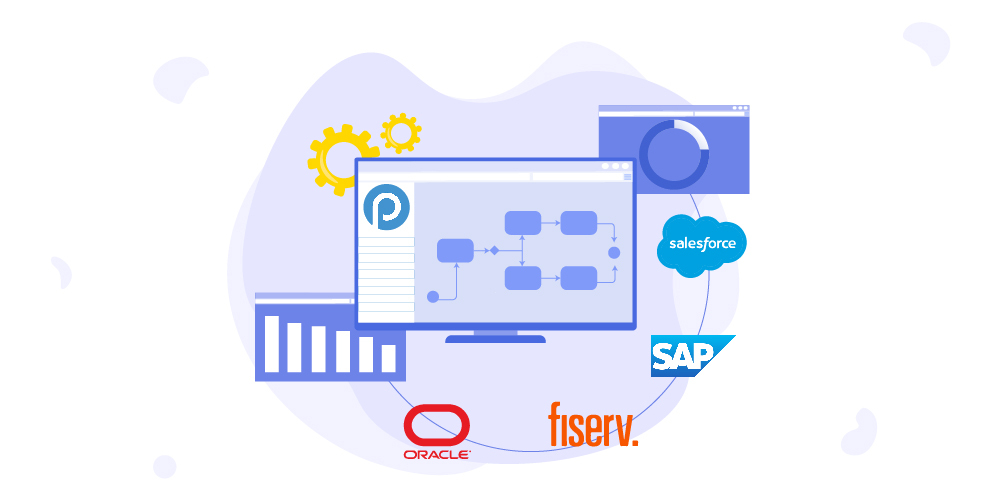
Using a simple drag and drop online modeling system, with ProcessMaker you can create business solutions that allow you to:
- Very quickly design scalable business processes with an intuitive visual modeler.
- Design web pages which can capture data. Such as forms and display data for later review or analysis at every step of the workflow as required.
- View and modify all the needed user groups, environment configurations and data through poweful dashboards and activity monitoring tools and pages.
Check out this interesting animation explaining the process.
Step by step Guide
PocessMaker is primarily an Enterprise cloud solution. There is also the possibility of open-source on-premises installation. But given that we want to use a minimal setup in order to test out the main features and the workflow of ProcessMaker without installing the many dependencies listed on this official list of requirements, we will be using Docker.
Docker will iron out and simplify most of our setup which will allow us to get started with ProcessMaker very quickly.
- Firstly, you need to have Docker downloaded and installed.
- Then you are required to clone or download this GitHub repository.
We will be using Git. With the command below executed inside the folder where we want the Dockerized version of ProcessMaker to be:
git clone https://github.com/ProcessMaker/pm4core-docker.git- Start the setup process with Docker by using the command:
cd pm4core-docker
docker-compose up
Given the size of the image required for download and the fact that this will probably be the first time, Docker is setting up everything. It will take a few minutes to finish depending on your PC performance.
- Once it finishes you can go to the newly created local instance at: http://localhost:8080, where you can use these default credentials to log in with:
Username: admin
Password: admin123
After you log in, you should be ready to start interacting with the various dashboards and tools that you can see when you log in:

From here you can look at the simple example that we created that will get you started on How to create a simple ProcessMaker Process and How to create a simple contact form as a ProcessMaker Screen.

