 Post by
  January 18, 2022 |

In this guide, we will use cURL through Windows CMD to show how to send data to a ProcessMaker Process using API endpoint which will start an already created ProcessMaker Process.

That process will simply receive data for later manual review by admins through the ProcessMaker Requests web page.
In order to send data that fits the specifically selected form template inside our Process we will use this command:
curl -X POST "http://localhost:8080/api/1.0/process_events/ <PROCESS_ID> ?event= <NODE_ID> " ^
-H "accept: application/json" ^
-H "Authorization: Bearer <API_TOKEN>" ^
-H "Content-Type: application/json" ^
-d "{\"form_input_1\":\"Luka\",\"form_input_2\":\"Čelebić\",\"form_input_3\":\"[email protected]\",\"form_text_area_1\":\"BlueGrid_Test\"}"
Here we need to replace a few things:
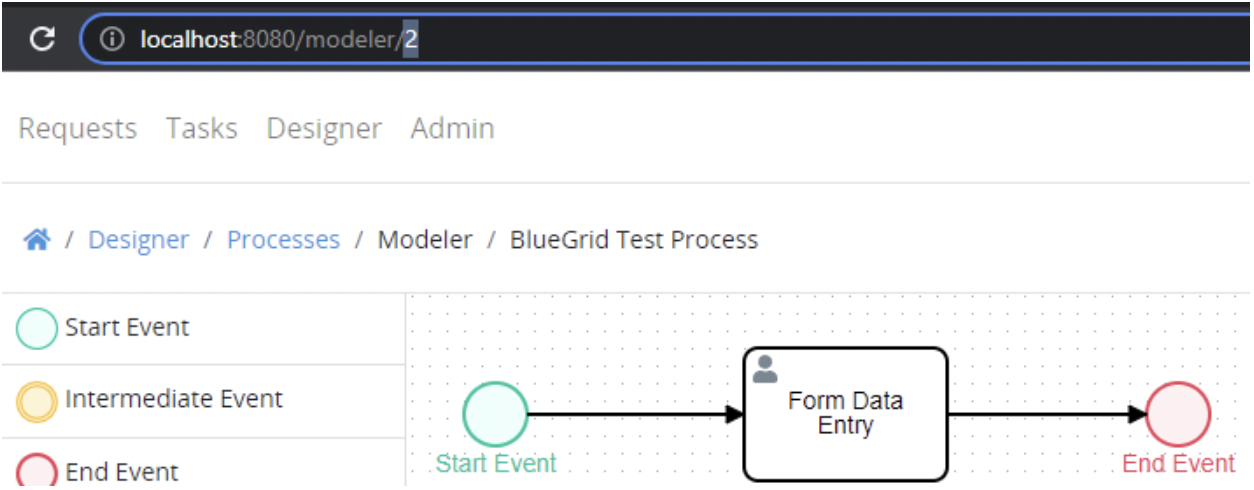
- <PROCESS_ID>. This will be the number at the end of the URL that we see when we go to the specific Process that we want to invoke, in this case that is “2”:
- <NODE_ID>, We see this by selecting the “Start Event” by clicking on it and then opening its “Advanced” settings in the right panel:

- “<API_TOKEN>”. Aside from having our ProcessMaker Process required variables, we also need our API Token. We can create one by going to the “Admin” > “Users” page:
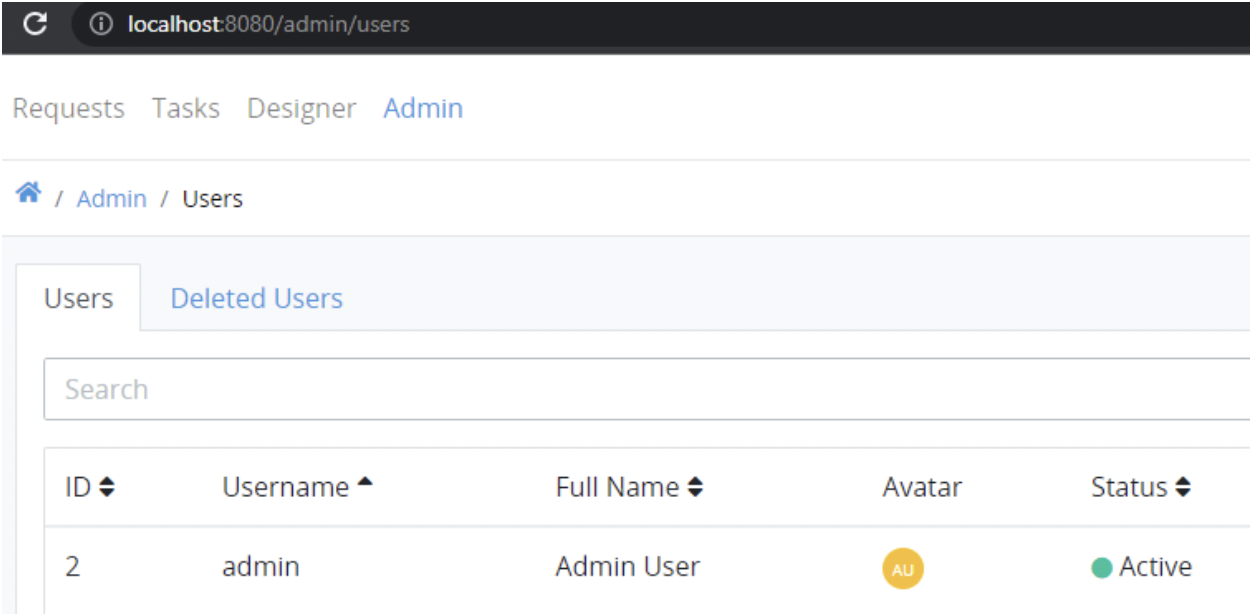
Here we can create a new user account specifically for our use case if that is required, but in this case we will be using the already existing admin user account by clicking on the “Edit” icon on the right of the entry: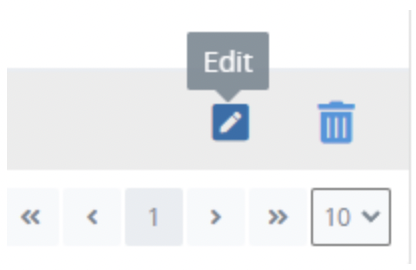
From there we enter the “API Tokens” tab and click the “+TOKEN” button to create a new API Token and copy it to replace the required variable in the cURL command: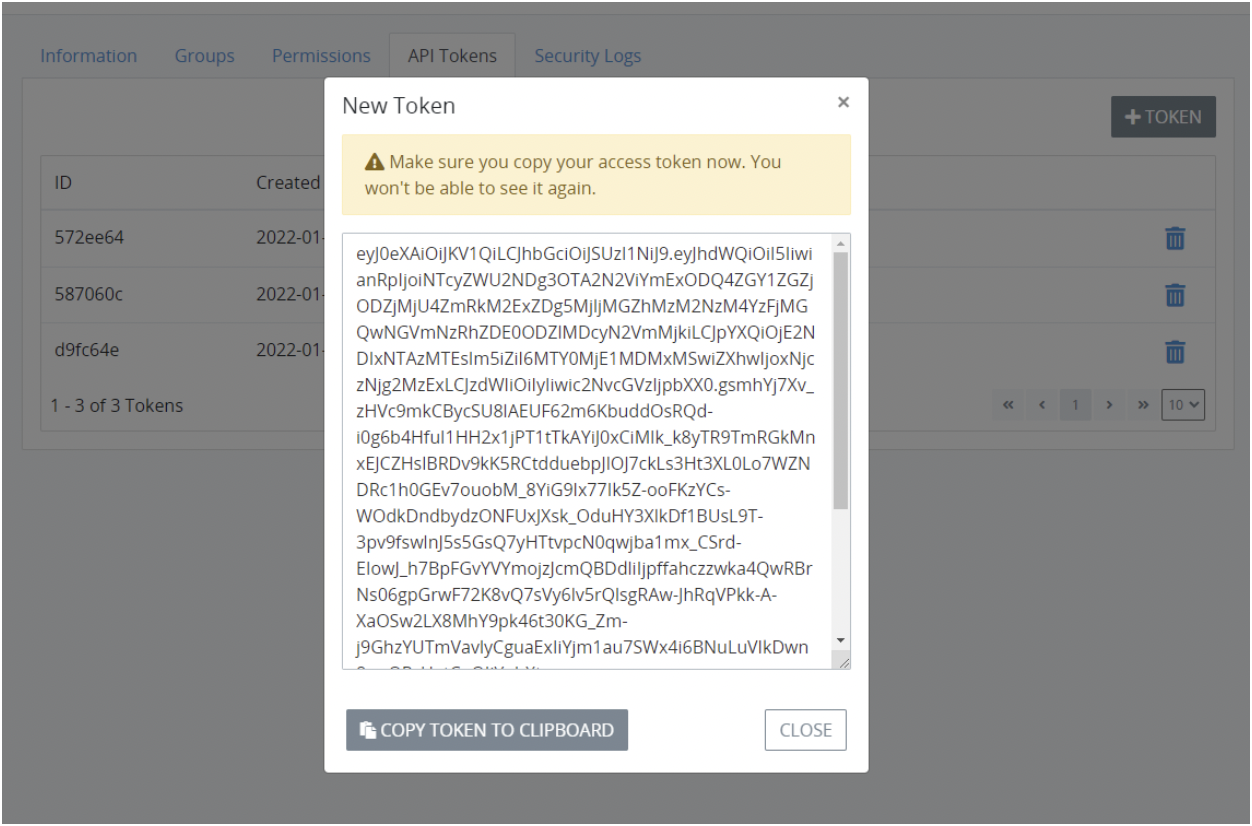
- The form data. If you have a different form template that you will be using or differently named form input fields you should also replace that as needed before sending the request.
At the end, this is an example as to how our command will look like:
curl -X POST "http://localhost:8080/api/1.0/process_events/2?event=node_1" ^
-H "accept: application/json" ^
-H "Authorization: Bearer eyJ0eXAiOiJKV1QiLCJhbGciOiJSUzI1NiJ9.eyJhdWQiOiI5IiwianRpIjoiNTg3MDYwYzIzMDI1OGZlMDFmZDljZTQzNmZlMWU2ZjE4NmQxMzEyYzllOTg3NTU3MjQ1MTIwZmJiNjRlMjZjNGY5MDE4MTZkYTAxN2Y3ZDgiLCJpYXQiOjE2NDIxNDE2MDksIm5iZiI6MTY0MjE0MTYwOSwiZXhwIjoxNjczNjc3NjA5LCJzdWIiOiIyIiwic2NvcGVzIjpbXX0.042XMSdSkXWYy1yvSdAY3R4-7eL2EWN75XDlztC8qYNHIatox3CH5tDt2WNyEUFNLEMi_uyAnlX5pm8xbJopSiZjiGMYObKk6iMiMGPACBkAbGBEMCpDoCf2Mi7OHKeasXf32Z7svesO6ug0AyMwmVkI80cStI8EbpwyNyUIFIWjafFvIgLLKEVRWqJpoVmkaFvdczF1eT0CLSVIPW9AqeiME59QdOAdX_XBnd2BjZdeumxL8-OXnIxqcrnkjeP9oZnbcc7kF_R-3mJQ8bywINLqUHSMMPL7MolwqPHGp-oh7VtS4mz1JFaBuuSJrsX-0zSVveV1M37VNlRmPYgh3rU-unDIKN5v9yhJFdsxkU5TT_wWtgajmk9W_xQRLC_Z0YGZmnjnoE_qe6aYMsZE-5wvdqhRtcxtPdigsa6tZYZkYq46iAwH0Qz7TUmKx6YaHdndg8pM2fdsoshoIj2GR9P9PIIeMLjMXKCa-sMqS0uWCVCWsxm5Y2Ovuv8g8KoTb3wnDSh3ikCDVhBUXcZXG-PvamTktqldjskWR9fvrBD-AY65zN-KH6e9XGyNvDKQjc75MoVZNopqUaeVUPfiumuwTdnhZvJQhCE9Kaup6c-tjoG8u52KKXWX4rss1tMBPBMW0868lzEVRTrIBDuWlKUa--dC0_qnKTEEaBat9Ds" ^
-H "Content-Type: application/json" ^
-d "{\"form_input_1\":\"Luka\",\"form_input_2\":\"Čelebić\",\"form_input_3\":\"[email protected]\",\"form_text_area_1\":\"BlueGrid_Test\"}"
After you send it and see some JSON returned it means it was sent successfully.
Now we should go to the “Requests” page through the UI and open the task inside the request we received:
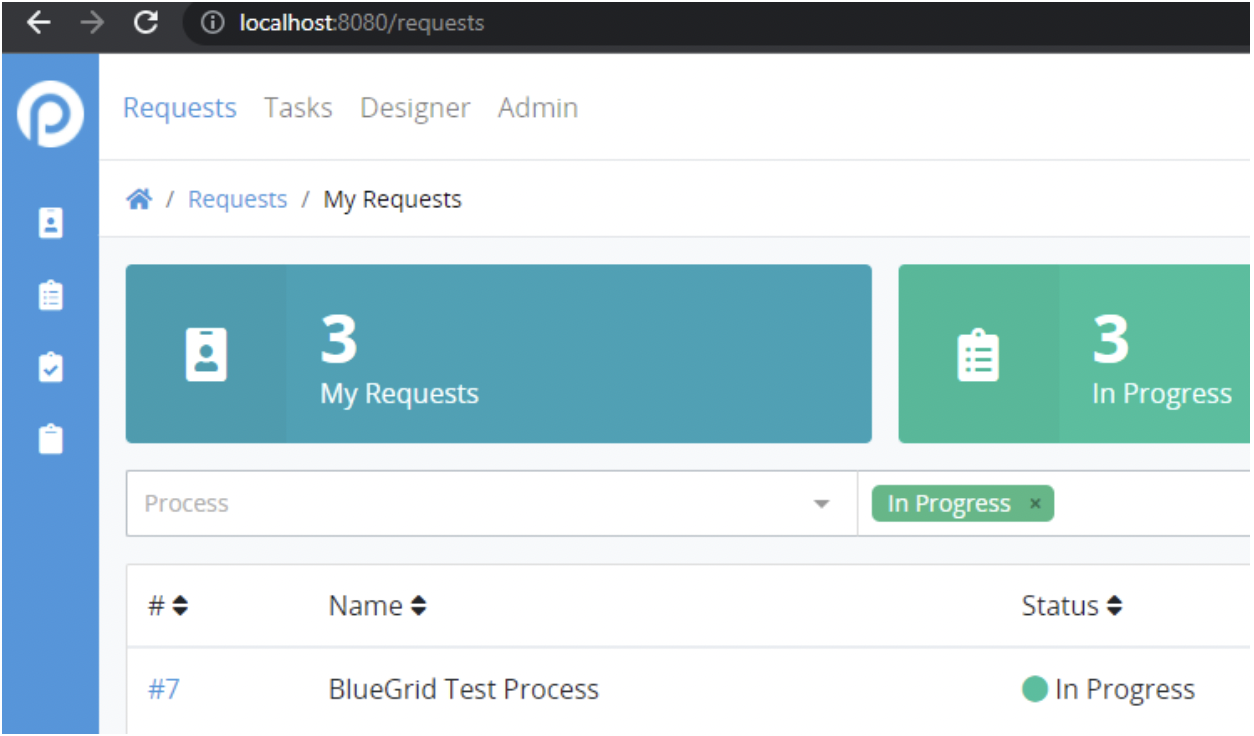
Inside we can view data either as it is inside at the “Data” tab, or the “Form” tab below:

Now, in the UI we can view, modify or cancel these requests as we want.
This was a simple showcase of using the ProcessMaker API endpoint through which we invoked a Process, for full ProcessMaker API documentation where you can also see every single request you can make you can go to the official documentation link:
https://staging-pm4.processmaker.net/api/documentation
We hope you have enjoyed the reading. Follow us for more 😉

