Post by
  July 22, 2026 |

The Problem Plan Mode Solves
One of the biggest traps that today’s developers fall into when working with AI tools is to rush in and try to deliver a whole project based on a single prompt. Like the tools used before it, Claude Code has the same trap. And it is very easy to fall into it. You have an idea? You write a prompt, and then Claude starts writing code without a clear plan of what you actually want.
It implements something reasonable and expected, but not what you actually wanted. You only realize this when you test the feature and see the nonsense it produced, because it had no plan. And then comes “the back and forth” of explaining what is wrong, where to roll back, repeating prompts, and fixing silly mistakes and hallucinations instead of making real progress. Time is lost, and “time is money”.
This is not the fault of the AI tool (Claude Code or any other available out there). It is the consequence of a missing step between “I give you this prompt” and “we start changing files.”
That step is perhaps the most important one in modern work with AI tools, and it is called planning. Claude Code has a mode made exactly for this: Plan Mode.
What Plan Mode Is and How It Works
Plan Mode is a mode in Claude Code in which Claude does not write code. It only analyzes and proposes a plan for how to complete the task in phases and in an organized way.
There are several ways to activate Plan Mode:
- You type /plan in the prompt
- or you say “enter plan mode” / “let’s plan this task”
- You press Shift and Tab on the keyboard. Then watch the modes change in Claude Code until you reach Plan Mode
- Claude Code sometimes suggests it on its own when it sees a more complex task ahead
What actually happens in Plan Mode:
- Claude reads the relevant files and understands the context
- It proposes which files you should change and in what order
- It explains why you should approach the task that way, not just what you need to do
- Claude saves the plan in an editable Markdown file, usually called
plan.md. You can name it whatever you want, but developers typically include “plan” in the filename.
During planning, Claude Code asks you clear questions and gives you several response options. It usually provides three suggested answers and a fourth field where you can write your own. If the suggested options do not match the direction you want to take, you can explain it in your own words.
On top of that, Claude Code offers a “Chat about this” option, which lets you continue discussing exactly what you want it to implement. The devil is in the details, and every detail matters when you work with Claude Code. The more detailed the prompt or the answer you give in Plan Mode, the clearer the path Claude will follow when carrying out its task.
Choosing How Claude Code Implements the Plan
Claude will usually ask you whether you want it to work in “auto mode” or whether you want to approve every change, and it will give you a mixed option as well as the chance to write your own answer.

And if you thought that was all, you are wrong, because Claude Code has an option inside these questions to mark what you want “him” to write and do from the offered items, so when you see square brackets, know that those are checkboxes you can tick or skip.

In addition, Claude Code also asks you at the end: do you want me to implement the tests in parallel with the logic, or will you do that later?

This mode lets you carry out your task exactly the way you want, without unwanted hallucinations and without wasting time fixing them. The more detailed the prompt you write before it starts planning, the more specific its questions will be, and the closer your task gets to being done.

And if you also take the time to pick “Chat about this” from the offered answers and describe what you want in greater detail what you actually need – JACKPOT!
My advice is that, in the prompts that come afterwards during the execution of the plan, you always ask Claude Code to update the plan file and check off what has been done, so that when you start the “machine” again the next day, it can easily look at the plan, know what it is working on, and how far it has got.
A Practical Example (From Everyday Work)
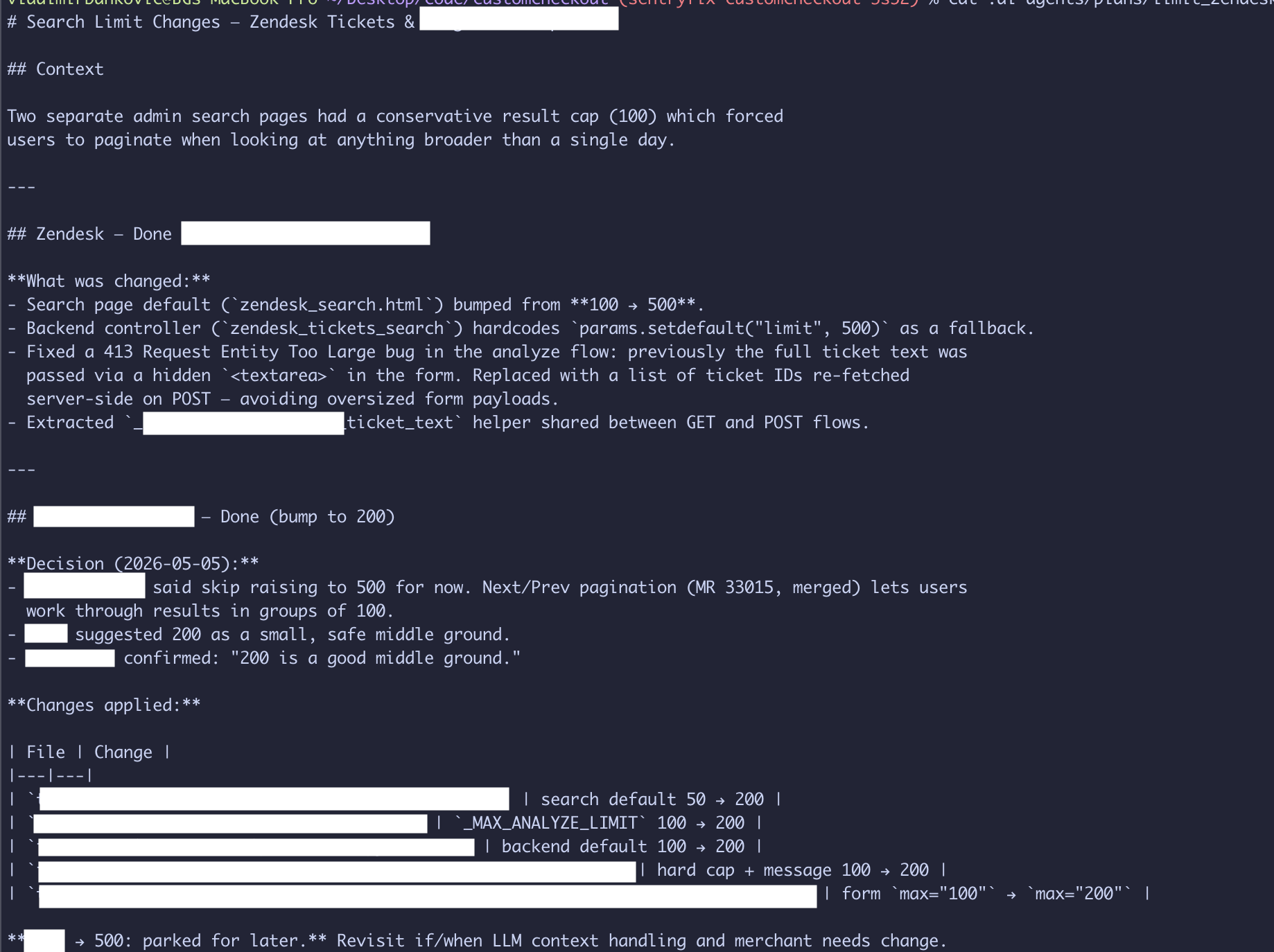
Recently I was working on an internal tool that the team uses to search transcripts of conversations with clients. The task looked trivial: raise the search limit from 100 to 200 results by changing a single number. At least that is how it looked. But…
Instead of starting right away, on the advice of a Principal Engineer, I entered Plan Mode. I described the task, Claude read the relevant files and returned a plan. It turned out that the limit was not defined in one place, but in five:
- the frontend template that displays the default value
- the backend controller that returns the search results
- a hard cap in the LLM analyze function
- the maximum value in the HTML form
- another fallback limit in the search view
If I had started the task without planning, I would most likely have changed the template and the backend default and believed the task was finished. Users would see “200” in the field, but as soon as they ran the LLM analysis, the system would silently cut them off at 100.
That is a bug that is not very easy to notice, and with it, all the analyses would be wrong; they would be missing samples, which would lead to poor results and poor business decisions.
Before I touched a single file, Plan Mode showed all the points that needed to change and proposed the order: first the backend capacity, then the frontend limits.
The task is not finished yet, because we left it for later, until it becomes one of our priorities. But when we continue, we will know exactly where we stopped and what needs to be done next.
The Most Important Value of Plan Mode
Plan Mode is worth nothing if you do not verify it and look at what Claude has planned for itself. Reviewing the plan takes maybe 2 or 3 minutes. Adding details, maybe another 2 or 3.
But removing wrong implementations, understanding what was changed and why, and then repeating the task or starting from scratch, that can take 30 minutes, and maybe even longer.
Another value, often unmentioned in online courses or YouTube video clips, is that reading the plan forces you to think and spot your gaps. When you see someone else’s interpretation of your task, you always notice something you forgot to write in your prompt or something you assumed wrongly.
Plan Mode not only helps Claude Code be more precise and better, but it also helps you be more precise in what you ask of it and raises your prompt engineering to a higher level.
When to Use Plan Mode and When Not To
My advice would be to use Plan Mode when:
- the task touches more than 2 or 3 files
- you are implementing a new feature from scratch
- there is a change that cascades through multiple layers (for example: model → service → API → tests)
- you are not sure about the approach and want to see the options before starting
- the change is hard to reverse.
You can freely skip it when:
- you are fixing a single line in a single file
- the change is crystal clear, and there is no confusion or double interpretation
- you only want an explanation, not an implementation.
Conclusion
Plan Mode is one of the most underrated features in Claude Code. The instinct to jump straight into code is strong, especially in today’s era of AI vibe coding hype. But experienced developers know that time invested in planning is never lost, it is the fastest path to correct logic and a good night’s sleep.
The workflow is simple: describe the task → Plan Mode → review the plan → approve → written code.
And even if, after a well-written plan, something comes up during implementation that you do not want, it’ll still have a smaller impact and be much easier to fix than if the plan had been bad or had never been written at all.